01
Odoo is in the cloud
The server lives in a data center and the printer in your shop. Without a bridge Odoo cannot see it, and opening ports or tunnels is a risk nobody wants to maintain.
Tickets and receipts on USB or network receipt printers. Even with Odoo in the cloud and no browser open.
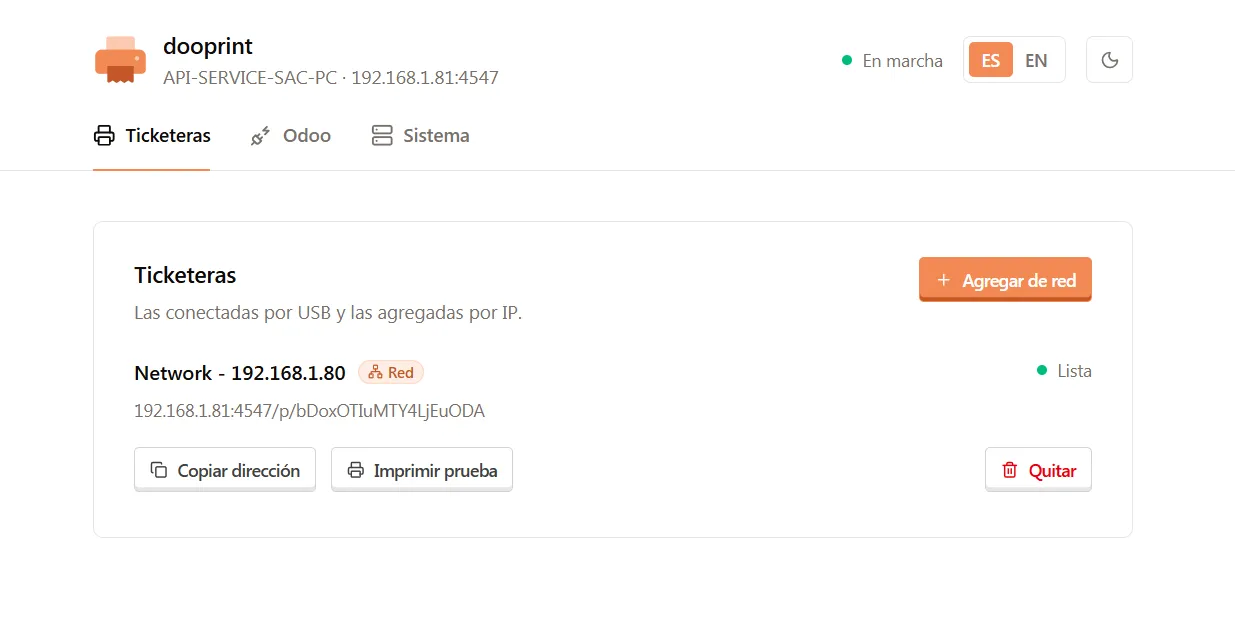
The agent interface, in the browser of any computer on the network.
Printing a ticket looks like the simplest thing in the system, until Odoo stops being on the same network as the printer.
01
The server lives in a data center and the printer in your shop. Without a bridge Odoo cannot see it, and opening ports or tunnels is a risk nobody wants to maintain.
02
Printing from the browser needs certificates, permissions and an open tab. An automatic process, like a ticket when clocking in, has no browser.
03
The usual options ask for a dedicated box, a specific printer brand or the Enterprise edition. Your current printer is left out.
It runs on any PC or server on your network. Odoo queues the job and the agent prints it right away.
The agent finds your printers, reports them to Odoo and keeps a record of every job and its result.
Turns Odoo’s format into ESC/POS, the language thermal printers of any brand understand.
Works with Odoo on a VPS or in a data center, without opening ports on your network.
Status of every device and printer, job queue and commands from Odoo.
Receipts, cash drawer and automatic printing on payment, set up on the point of sale itself.
Orders on the printer of each area, with only the products of its categories.
Any Odoo module prints with one line of code and gets the result of the job back.
Against the two usual ways of printing tickets from Odoo.
| Capability | Browser (ePOS) | IoT Box | Dooprint |
|---|---|---|---|
| Receipt printers of any brand | |||
| Odoo in the cloud, without opening ports | Partial | ||
| Print without a browser open | Partial | ||
| Works with Odoo Community | |||
| No dedicated hardware | |||
| Runs on an existing PC or server |
No network setup, no files to edit: the device pairs with Odoo by pasting a token.
On Windows, run the installer. On Linux, the script installs the service with its own user.
setup.exe · install.sh
In Odoo, Dooprint › Connect issues a token. Paste it into the agent and pick the mode.
One token
The agent finds USB printers and you add network ones by IP. They show up in Odoo right away.
USB and network
Pick the printer on the point of sale or in your process, and try it with a test page.
Done
If it is a thermal printer that speaks ESC/POS, yes: that is the vast majority, of any brand. It can be connected by USB or over the network.
No. Dooprint is built for Odoo 19 Community. It uses neither the IoT Box nor Enterprise modules.
No. In agent mode the device itself connects to Odoo and receives jobs in real time. There are no ports to open and no tunnels on your network.
Jobs wait in the Odoo queue. When the device is back it picks them up; those past the timeout are marked as failed and can be retried.
Yes. Any server process can print, for example a document when an order is confirmed.
On GitHub, where every release is published with the installers for Windows and Linux.
Coming soon: printing from the point of sale, kitchen orders and integration with your own processes.
Any PC with Windows 10 or 11, or a Linux server, on the same network as the printers. It runs as a background service and starts with the computer.
Download the agent, connect it to your Odoo and print a test page. If you have questions, write to us.